


Why Task Manager Lies About Your CPU Usage: The Original Creator Explains the Truth
Bro, this is some wild tech news that's gonna make you question everything you thought you knew about Windows. Dave Plummer, the absolute legend who created Windows Task Manager back in the day, just dropped some serious knowledge bombs about why that CPU percentage you're staring at isn't telling the whole truth. And honestly? It explains so much about why my Ryzen 9 7950X sometimes shows weird usage spikes that don't match what I'm actually seeing in performance.
Look, we've all been there. You're gaming, maybe running Cyberpunk 2077 with RT maxed out, and Task Manager is showing your CPU at like 65% usage. But something feels off. Your frames are stuttering, temps are climbing, and you're thinking "what the hell is going on?" Turns out, Task Manager has been playing games with us this whole time.
The Dirty Secret Behind CPU Usage Calculations
Dave Plummer recently explained that measuring CPU usage is way more complicated than just "how busy is my processor right now?" The dude literally wrote the code, so when he talks, we listen. Here's the thing that'll blow your mind: there's no single "correct" way to measure CPU usage, and different methods can give you wildly different results.
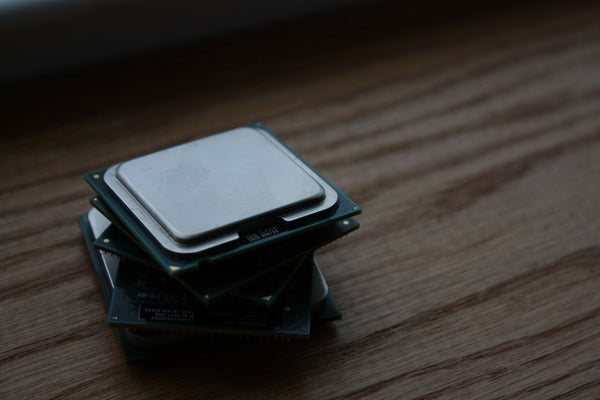
Think about it this way. Your CPU isn't just running at one speed anymore. We're not living in the Pentium 4 days where your processor had one clock speed and that was it. Modern chips have boost clocks, thermal throttling, sleep states, and per-core frequency scaling. So when Task Manager shows 50% CPU usage, what does that even mean?
"The fundamental problem is that there's no universal definition of what 100% CPU usage actually represents on modern processors with dynamic clocking."
Plummer broke down how Task Manager calculates that percentage, and it's honestly more of an educated guess than precise science. The system samples CPU activity over time intervals and tries to extrapolate usage based on how much time the processor spent in different states. But here's where it gets messy – if your CPU is boosting from 3.5GHz to 5.2GHz mid-calculation, that percentage becomes meaningless.
Why Gaming Performance Feels Different Than Task Manager Shows
This explains why I've seen so many confused customers at our shop here in Orange, TX asking why their new RTX 4080 build feels sluggish even though Task Manager shows "normal" CPU usage. The reality is that gaming workloads are incredibly spiky and inconsistent, nothing like the steady workloads that traditional CPU monitoring was designed for.
When you're playing something like Battlefield 2042 or Warzone, your CPU usage pattern looks like a damn seismograph during an earthquake. One core might spike to 100% for 3 milliseconds while handling physics calculations, then drop to 20% while waiting for the GPU. Task Manager's averaging makes this look like steady 60% usage, but your actual gaming experience reflects those microsecond spikes.
Gaming technology has evolved way faster than our monitoring tools. We're running games with 200+ FPS targets, real-time ray tracing, and AI-enhanced graphics, but we're still measuring performance with tools designed for office productivity workloads from the Windows XP era.
The Real Solution: Better Monitoring Tools
Honestly, if you're serious about understanding your PC's performance, you need to ditch Task Manager for actual monitoring. Plummer himself admits that Task Manager was never meant to be a precision instrument – it was designed to help users identify obviously misbehaving programs, not provide accurate performance metrics.
Here's what actually works for monitoring CPU performance during gaming:
- HWiNFO64 for detailed per-core monitoring and thermal data
- MSI Afterburner for real-time overlay during gaming
- Intel XTU or Ryzen Master for manufacturer-specific monitoring
- RTSS (RivaTuner Statistics Server) for frame time analysis
These tools show you what's really happening. Instead of a single misleading percentage, you get per-core usage, actual clock speeds, thermal throttling indicators, and frame time consistency metrics. When I'm troubleshooting a customer's build, this data tells me whether we're looking at a CPU bottleneck, thermal issue, or just Task Manager being Task Manager.
The Modern CPU Monitoring Challenge
But here's where things get genuinely complicated, and even Plummer acknowledges this uncertainty. With processors like the Intel 13900K having different core types (P-cores and E-cores) running at different speeds, what does CPU usage even mean anymore? Should 50% usage on a P-core count the same as 50% usage on an E-core? The answer isn't clear-cut.
Personally, I think we need completely new metrics for modern hardware. CPU usage percentages made sense when processors were simpler, but now they're almost meaningless. We should be tracking effective throughput, thermal efficiency, and performance per watt instead of this legacy percentage system that doesn't reflect reality.
What This Means for Your Gaming Setup
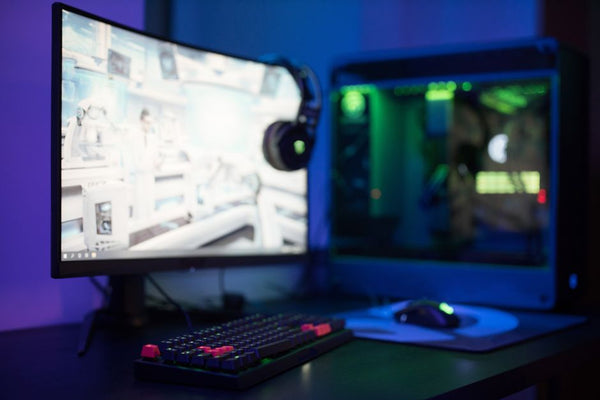
If you're planning a new build or trying to optimize your current rig, stop relying on Task Manager's CPU usage as your primary metric. It's genuinely not telling you what you think it's telling you. Instead, focus on actual gaming performance indicators like frame times, 1% lows, and thermal behavior under sustained load.
Hot take: Task Manager showing 100% CPU usage doesn't necessarily mean your processor is maxed out. It might mean one core hit its thermal limit and throttled down, making the system think it's fully utilized when it's actually running slower than normal. This is especially common with poorly configured PCs running stock coolers on high-end processors.
When someone comes into our Orange, TX location asking why their expensive gaming PC feels slow despite "low" CPU usage in Task Manager, this is usually the culprit. The monitoring tools are lying, and the real bottleneck is thermal throttling, memory latency, or per-core performance issues that averaged usage percentages completely miss.
Building Smarter, Not Just Faster
This whole revelation changes how we should approach PC building and optimization. Instead of chasing arbitrary usage percentages, focus on actual performance metrics that matter for your specific use case. If you're gaming at 1440p with a 165Hz monitor, your target should be consistent frame times, not some magical CPU usage number.
For anyone looking to build your custom gaming PC with BitCrate, understanding these monitoring limitations is crucial for making informed component choices. Don't let Task Manager's oversimplified metrics drive your hardware decisions when better tools exist to show what's actually happening under the hood.
The fact that Dave Plummer himself is calling out the limitations of his own creation shows how much computing has evolved. We're not just dealing with faster versions of old hardware anymore – we're running fundamentally different architectures that need fundamentally different measurement approaches. Task Manager served us well for decades, but it's time to admit that modern gaming demands modern monitoring solutions.








Leave a Comment